
How to Generate a QR Code in Node.js and React
Introduction
QR codes have become a ubiquitous part of our digital landscape, used for everything from payment systems to event check-ins. They are a quick and easy way to share information, and generating them programmatically can be incredibly useful in various applications. In this blog, we’ll walk through how to generate a QR code in a React frontend and a Node.js backend. We’ll use popular libraries like qrcode in Node.js and qrcode.react in React to accomplish this

Prerequisites
Before we dive in, make sure you have the following set up:
- Basic knowledge of Node.js and React.
- A working Node.js environment.
create-react-appinstalled for quickly setting up a React project.
Setting Up the Backend with Node.js
Let’s start by setting up the backend, where we’ll generate a QR code as a base64 string and send it to the frontend.
Step 1: Create a New Node.js Project
First, create a new directory for your project and initialize it as a Node.js project:
mkdir qr-code-generator
cd qr-code-generator
npm init -y
Step 2: Install the Required Packages
Next, install the express framework for building the server and qrcode for generating the QR code:
npm install express qrcodeStep 3: Create the Server
Create a file named server.js and set up a simple Express server with a route to generate a QR code.
const express = require('express');
const QRCode = require('qrcode');

const app = express();
const port = 5000;

app.use(express.json());

app.post('/generate-qrcode', async (req, res) => {
    const { text } = req.body;

    try {
        const qrCode = await QRCode.toDataURL(text);
        res.status(200).json({ qrCode });
    } catch (err) {
        res.status(500).json({ message: 'Failed to generate QR code', error: err.message });
    }
});

app.listen(port, () => {
    console.log(`Server is running on http://localhost:${port}`);
});
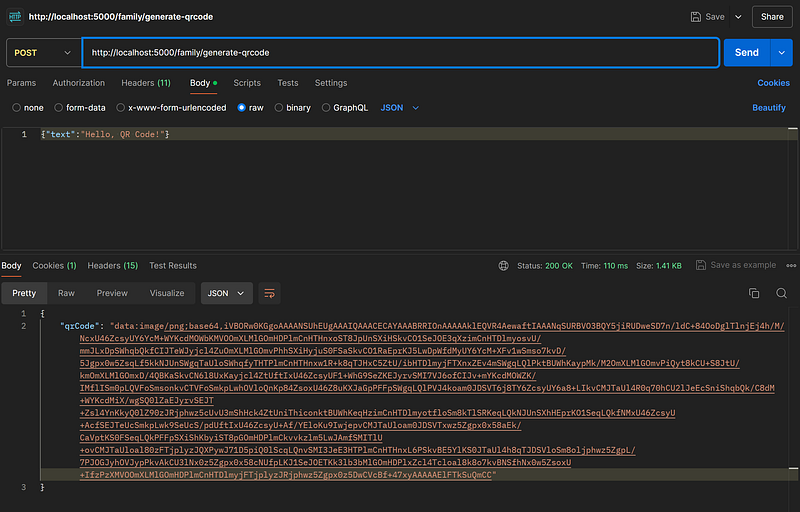
This server exposes a POST endpoint /generate-qrcode that accepts a JSON body containing the text you want to encode in the QR code. The QRCode.toDataURL method generates the QR code as a base64 string, which can be easily rendered in the frontend.
Step 4: Test the Backend
Before moving to the frontend, let’s test the backend using a tool like Postman or cURL:
curl -X POST http://localhost:5000/generate-qrcode -H "Content-Type: application/json" -d '{"text":"Hello, QR Code!"}'You should receive a base64 encoded string representing the QR code.
Building the Frontend with React
Now that the backend is ready, let’s create a React frontend to interact with it and display the generated QR code.
Step 1: Set Up a React Project
If you haven’t already, set up a new React project using create-react-app:
npx create-react-app qr-code-frontend
cd qr-code-frontend
Step 2: Install the Required Package
We’ll use the qrcode.react package to display the QR code. Install it by running:
npm install qrcode.reactStep 3: Create the QR Code Generator Component
Create a component named QRCodeGenerator.js in the src folder:
import React, { useState } from 'react';
import axios from 'axios';
import { QRCode } from 'qrcode.react';

function QRCodeGenerator() {
    const [text, setText] = useState('');
    const [qrCode, setQrCode] = useState('');

    const generateQRCode = async () => {
        try {
            const response = await axios.post('http://localhost:5000/generate-qrcode', { text });
            setQrCode(response.data.qrCode);
        } catch (err) {
            console.error('Error generating QR code:', err);
        }
    };

    return (
        <div style={{ textAlign: 'center', marginTop: '50px' }}>
            <h2>QR Code Generator</h2>
            <input
                type="text"
                value={text}
                onChange={(e) => setText(e.target.value)}
                placeholder="Enter text to generate QR code"
                style={{ padding: '10px', width: '300px' }}
            />
            <button onClick={generateQRCode} style={{ padding: '10px 20px', marginLeft: '10px' }}>
                Generate
            </button>
            {qrCode && (
                <div style={{ marginTop: '30px' }}>
                    <h3>Generated QR Code:</h3>
                    <img src={qrCode} alt="QR Code" />
                </div>
            )}
        </div>
    );
}

export default QRCodeGenerator;
This component handles user input for the text to be encoded and sends a POST request to the backend to generate the QR code. If the QR code is successfully generated, it is displayed using an img tag.
Step 4: Use the Component in App.js
Finally, import and use the QRCodeGenerator component in your App.js:
import React from 'react';
import QRCodeGenerator from './QRCodeGenerator';

function App() {
    return (
        <div className="App">
            <QRCodeGenerator />
        </div>
    );
}

export default App;
Running the Application
Now, run both the backend and frontend to see the QR code generator in action:
- Start the Node.js server:
node server.jsStart the React development server:
npm startVisit http://localhost:3000 in your browser. You should see an input box where you can enter text and generate a QR code.
Conclusion
Generating QR codes in a React and Node.js application is straightforward and can be incredibly useful for various use cases, such as embedding links, sharing data, or even managing inventory. With the steps outlined in this guide, you can easily integrate QR code generation into your own projects.


