How to Add Google reCAPTCHA
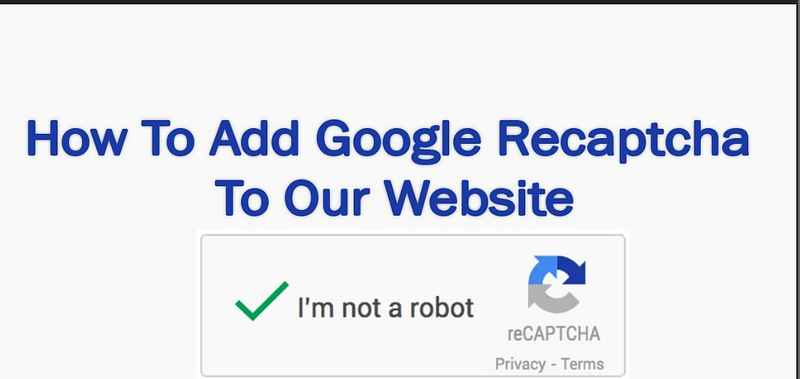
How to Add Google reCAPTCHA
Adding Google reCAPTCHA to your Node.js application is a great way to protect your site from spam and abuse. Google reCAPTCHA helps ensure that only real users can access your web forms. In this tutorial, we will walk you through the steps to integrate Google reCAPTCHA in your Node.js application.
Step 1: Register Your Site with Google reCAPTCHA
First, you need to register your site with Google reCAPTCHA and get your site key and secret key.
- Go to the Google reCAPTCHA site.
- Register a new site by providing the necessary details.
- Choose the reCAPTCHA type (v2 or v3).
- Once registered, you will get a site key and a secret key. Save these keys as you will need them later.
Step 2: Install Required Packages
To use Google reCAPTCHA in your Node.js application, you need to install the following packages:
express: For creating the server and handling routes.body-parser: To parse incoming request bodies.axios: For making HTTP requests to verify the reCAPTCHA response.
You can install these packages using npm:
npm install express body-parser axiosStep 3: Create the Server and Form
Create a file named app.js and set up your Express server and HTML form:
const express = require('express');
const bodyParser = require('body-parser');
const axios = require('axios');

const app = express();
const port = 3000;

app.use(bodyParser.urlencoded({ extended: false }));
app.use(bodyParser.json());

app.post('/submit', (req, res) => {
    const token = req.body['g-recaptcha-response'];
    const secretKey = 'YOUR_SECRET_KEY';
    const url = `https://www.google.com/recaptcha/api/siteverify?secret=${secretKey}&response=${token}`;

    axios.post(url)
        .then(response => {
            if (response.data.success) {
                res.send('reCAPTCHA verification successful. Form submitted.');
            } else {
                res.send('reCAPTCHA verification failed. Please try again.');
            }
        })
        .catch(error => {
            res.send('Error verifying reCAPTCHA. Please try again.');
        });
});

app.listen(port, () => {
    console.log(`Server running at http://localhost:${port}`);
});
Replace YOUR_SITE_KEY and YOUR_SECRET_KEY with the keys you obtained from the Google reCAPTCHA site.
Step 4: Create the Frontend
Create a directory named public and inside it, create a file named index.html with the following content:
<!DOCTYPE html>
<html lang="en">
<head>
    <meta charset="UTF-8">
    <meta name="viewport" content="width=device-width, initial-scale=1.0">
    <title>Google reCAPTCHA Example</title>
    <script src="https://www.google.com/recaptcha/api.js" async defer></script>
</head>
<body>
    <form action="/submit" method="POST">
        <div class="g-recaptcha" data-sitekey="YOUR_SITE_KEY"></div>
        <br/>
        <input type="submit" value="Submit">
    </form>
</body>
</html>
Step 5: Run the Server
Start your server by running the following command in your terminal:
node app.jsOpen your browser and navigate to http://localhost:3000. You should see the form with the reCAPTCHA widget. Fill out the form and submit it. If the reCAPTCHA verification is successful, you will see a success message; otherwise, you will see an error message.
Conclusion
Integrating Google reCAPTCHA in your Node.js application is a simple process that can greatly enhance your site’s security. By following the steps outlined in this tutorial, you can protect your forms from spam and abuse, ensuring that only real users can submit them.
Feel free to modify and enhance the code to suit your specific needs. Happy coding!


